The Points Guy believes that credit cards can transform lives, helping you leverage everyday spending for cash back or travel experiences that might otherwise be out of reach. That's why we publish a variety of editorial content and card comparisons: to help you find a great card to turn your goals into reality.
Our site may earn compensation when a customer clicks on a link, when an application is approved, or when an account is opened with our partners, and this may impact how or where these products appear. While we don't cover all available credit cards, our editorial team creates and maintains all of the analysis of these cards, and our content is not influenced nor subject to review by any credit card company, bank or partner prior to (or after) publication. Please view our advertising policy and product review methodology for more information.
Advertiser disclosure
The Points Guy believes that credit cards can transform lives, helping you leverage everyday spending for cash back or travel experiences that might otherwise be out of reach. That's why we publish a variety of editorial content and card comparisons: to help you find a great card to turn your goals into reality.
Our site may earn compensation when a customer clicks on a link, when an application is approved, or when an account is opened with our partners, and this may impact how or where these products appear. While we don't cover all available credit cards, our editorial team creates and maintains all of the analysis of these cards, and our content is not influenced nor subject to review by any credit card company, bank or partner prior to (or after) publication. Please view our advertising policy and product review methodology for more information.
News
ExpertFlyer can now automate flight alerts and suggest alternatives during disruptions
Katie Genter is a digital nomad who has traveled full time since June 2017. She writes and edits stories about points and miles, and loyalty programs, often letting her personal experiences color these stories.
September 24, 2026 • 7 min read
The cards we feature here are from partners who compensate us when you are approved through our site, and this may impact how or where these products appear. We don't cover all available credit cards, but our analysis, reviews, and opinions are entirely from our editorial team. Terms apply to the offers listed on this page. Please view our advertising policy and product review methodology for more information.
Editorial note: ExpertFlyer is owned by TPG's parent company, Red Ventures.
Editorial disclaimer: Opinions expressed here are the author's alone, not those of any bank, credit card issuer, airline or hotel chain, and have not been reviewed, approved or otherwise endorsed by any of these entities.
Comments
By commenting, you agree to our Community Guidelines to help create a positive space for conversation. The responses below are not provided or commissioned by the bank advertiser, our partners, or The Points Guy (“TPG”). They have not been reviewed, approved, or otherwise endorsed by any of these parties. All responses are submitted by individual contributors, and neither the bank advertiser, our partners, nor TPG are responsible for ensuring that all posts and/or questions are answered.
Related stories
Quick summary
ExpertFlyer has introduced automated alerts, allowing Premium and Elite members to set up multiple flight notifications by simply forwarding a confirmation email.
A new disruption alert feature, currently in public beta, notifies travelers of cancellations, delays or schedule changes and suggests alternative flights.
The platform now offers a blog and free monthly webinars to help users better understand and utilize its features.
An affiliate program has launched, enabling creators to earn commissions for referring new members.
What to consider
Automated alerts are available only to Premium and Elite members.
Disruption alerts currently monitor only individual flight legs.
Delay or cancellation reasons can only be retrieved through ExpertFlyer within a limited window.
What you'll miss from the article
Step-by-step guidance on setting up automated and disruption alerts to streamline flight monitoring and maximize ExpertFlyer's new features.
Generated by AI with support from our editorial team.
My husband and I use ExpertFlyer every time we book a flight. It helps us monitor everything from schedule changes and aircraft swaps to award and upgrade availability, but setting up several alerts for every segment has always required a bit of manual work.
Luckily, ExpertFlyer made that process significantly easier earlier this year. Now, the automated alerts feature lets Premium and Elite members create multiple alerts simply by forwarding a flight confirmation email. Meanwhile, a new disruption alert feature that's in public beta phase can notify travelers of major schedule changes, delays or cancellations and suggest alternative flights.
The platform has also recently added more resources, including a new blog, free monthly webinars and an affiliate program for travel creators.
Here’s a look at what ExpertFlyer has recently added, and how the new features work.
Automated alerts
Every time we book a new flight, my husband goes into ExpertFlyer and sets up several alerts for each leg of our trip:
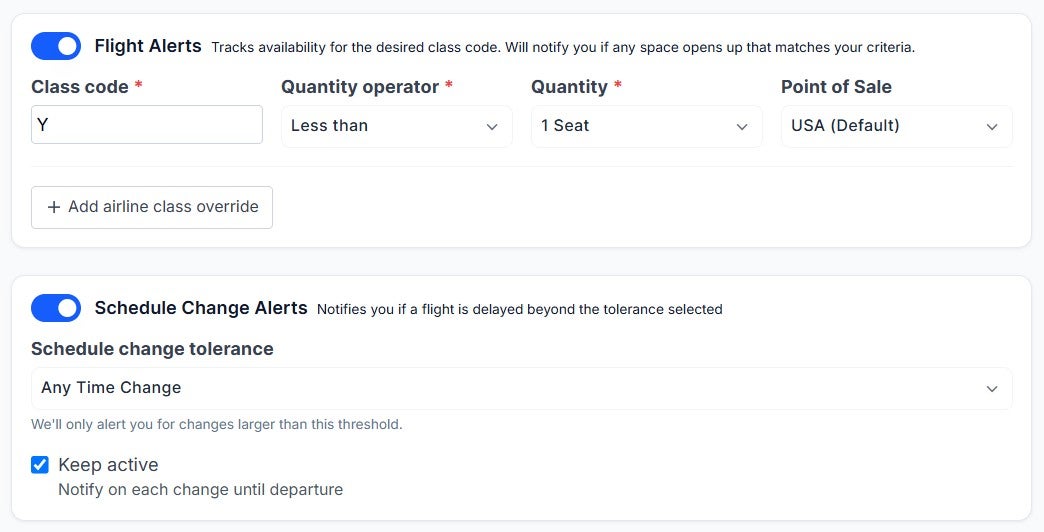
Flight alert: We use it to tell us if the flight has been zeroed out (a good indication the airline may cancel it, unless it occurs within a few days of departure). But you could also use it to monitor a flight for award or upgrade availability in a specific fare class.
Flight schedule alert: We use it to let us know if the airline retimes any of our flights (this can let us call and force a rebook to our ideal itinerary before the airline automatically rebooks us).
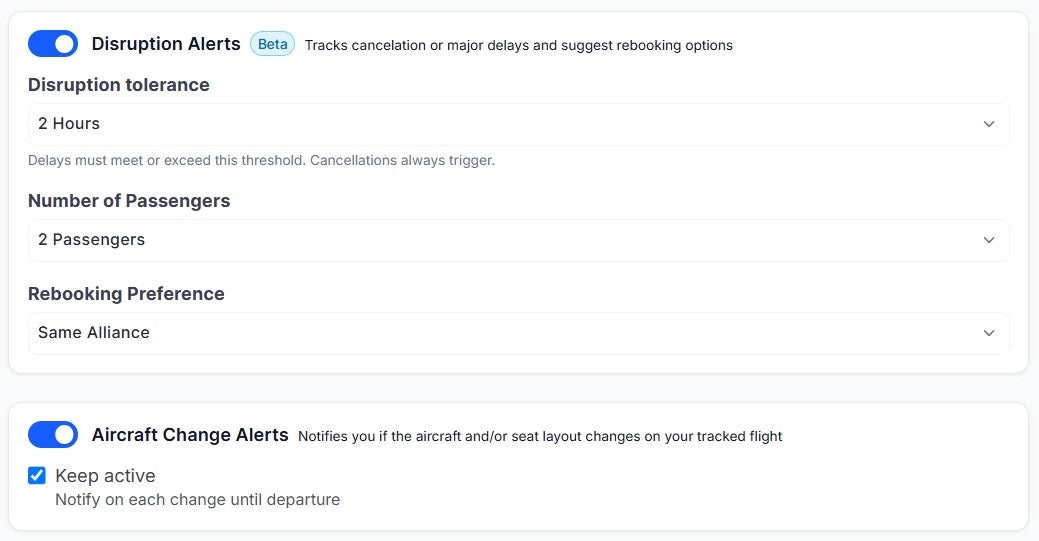
Aircraft change alert: We use it to know if the airline changes the aircraft type or seat layout for a specific flight (this lets us select new seats or try to switch to another flight).
ExpertFlyer recently launched Quick Alerts, which let you set up all three of these alerts in a single form. But now it's even easier for Premium and Elite members to set up these three alerts thanks to a new automated alerts feature.
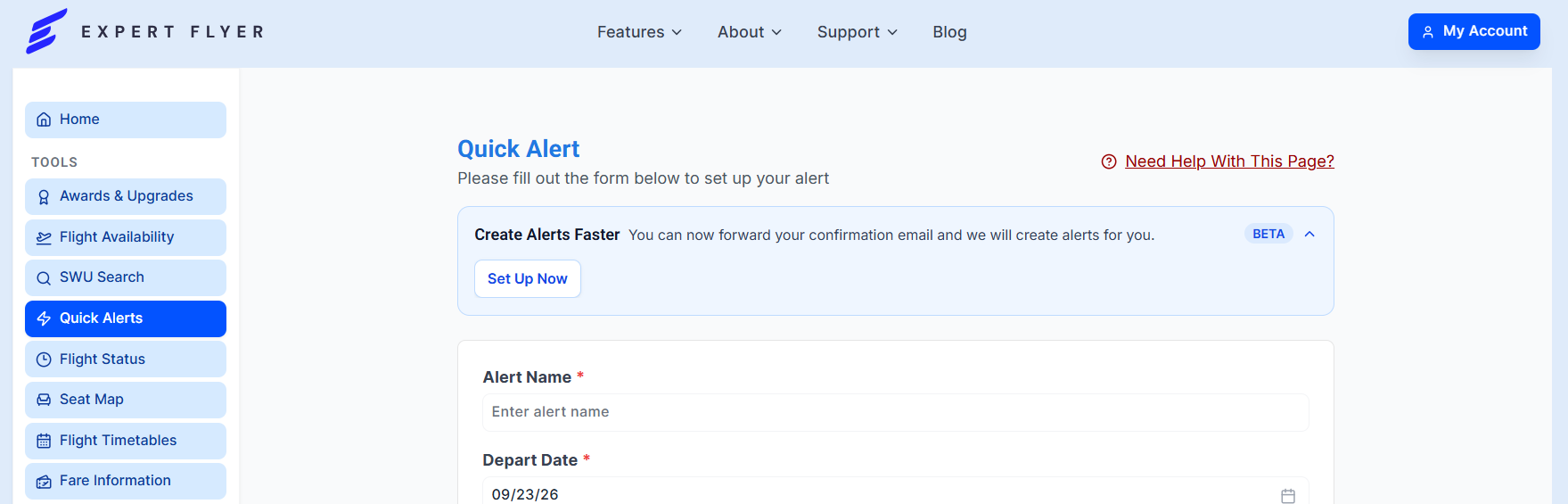
To get started with automated alerts, head to the Quick Alert page and click "Set Up Now" under "Create Alerts Faster."
EXPERTFLYER
Then decide which alert types you're interested in, set your preferences for each, and click Save. For reference, here's how I set up my default preferences.
1 of 2
EXPERTFLYER
2 of 2
EXPERTFLYER
Once you save your preferences, the hard work is done. Then all you have to do is forward airline confirmations to createalerts@expertflyer.com from the email associated with your ExpertFlyer account each time you book a new flight. You could even set up an auto-forward feature in most email clients, so that the alerts would be set up automatically without any work from you each time you book a flight.
When you forward an airline confirmation after setting up the automated alerts feature, ExpertFlyer will create the specified alerts for all segments of your flight itinerary.
You might have noticed the disruption alerts option in the automated alerts set-up steps described above. Disruption alerts are a new ExpertFlyer feature, currently in public beta, for Premium and Elite users that monitors cancellations, delays and schedule changes before your flight.
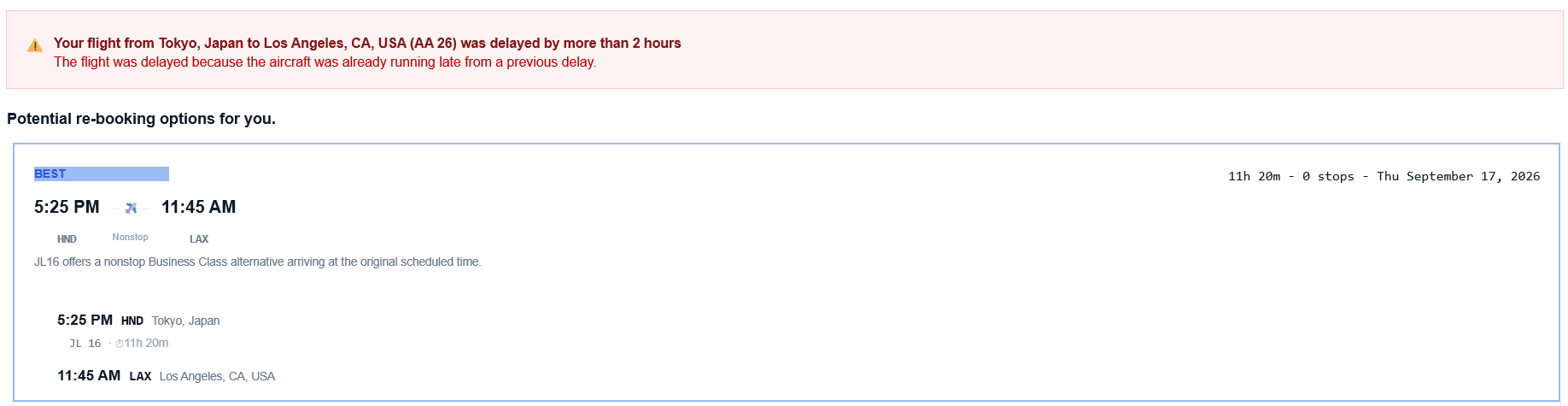
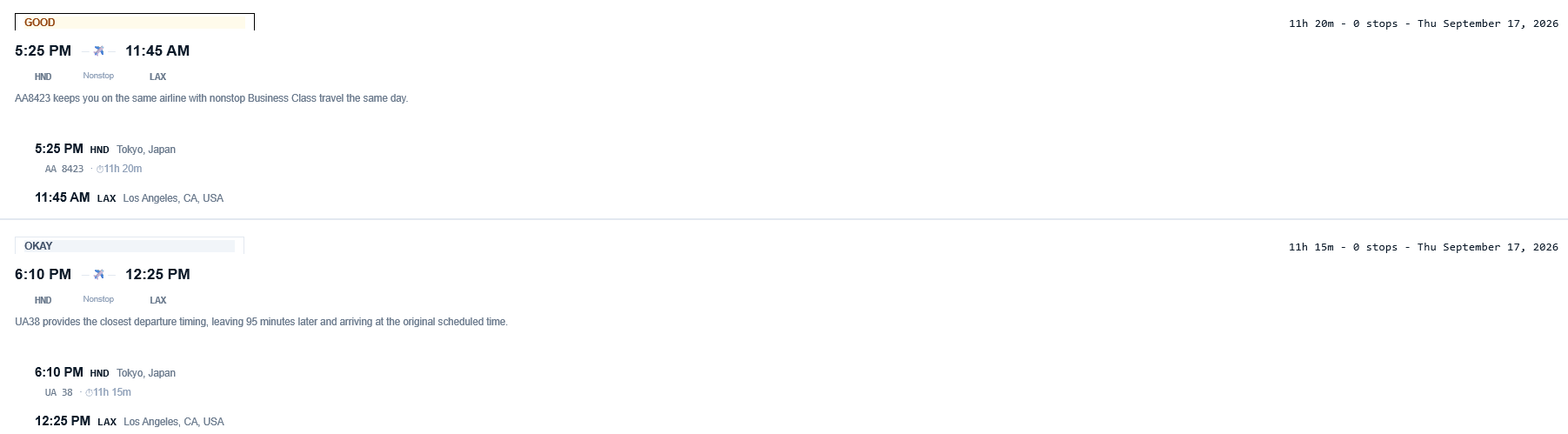
If a disruption alert detects a cancellation, delay or schedule change that exceeds the threshold you set when creating the alert, it will email you several alternative flight options.
EXPERTFLYER
For each option, ExpertFlyer includes a short statement on why it believes it is one of the best options. You can then use these options as you work with the airline to get on a new flight.
EXPERTFLYER
One of the limitations of these disruption alerts is that they only consider the one flight leg if you happen to be on a multi-leg journey. The ExpertFlyer team is aware of this limitation and says it is already working on a process that will allow disruption alerts to consider all remaining legs of a journey.
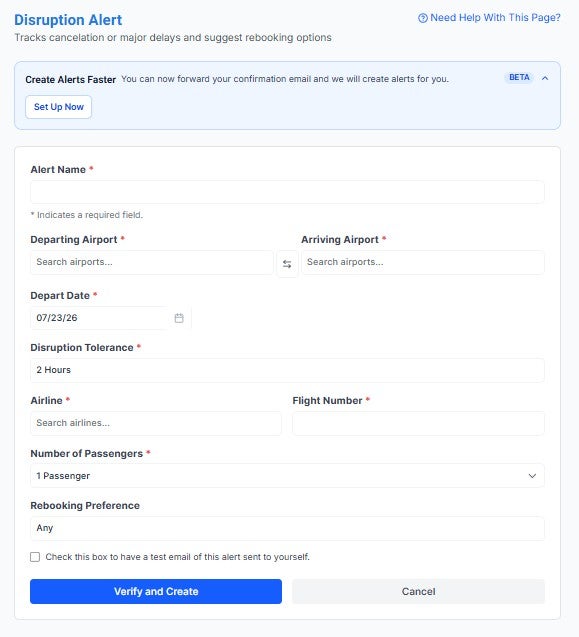
Even if you don't forward your flight confirmation and set up a disruption alert as part of the new automated alerts workflow, you can still set up a disruption alert for a flight from the disruption alert page.
EXPERTFLYER
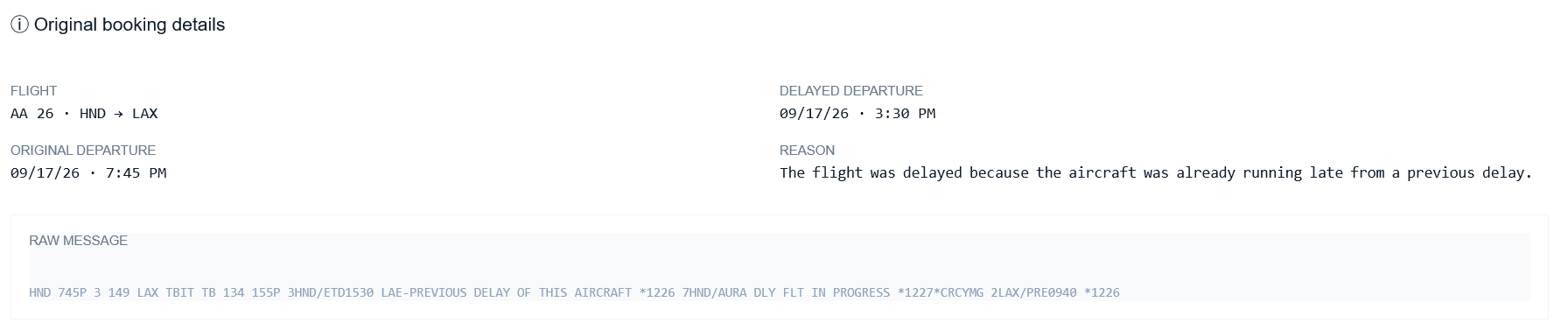
Finally, you'll also see the airline's confirmed reason for the delay or cancellation at the bottom of the email.
EXPERTFLYER
You can use ExpertFlyer to retrieve the reason your flight was delayed or canceled if you have a Premium or Elite membership, even without setting up a disruption alert. But you can only do so within the three days before your flight or the seven days after it. So, having the reason in an email is nice if you might otherwise forget to retrieve the delay or cancellation reason within this time frame.
ExpertFlyer recognizes that its product can be confusing and intimidating to casual or inexperienced users. To help their users level up and become power users, ExpertFlyer has launched two new beginner-friendly features: a blog and free monthly webinars.
Additionally, ExpertFlyer now offers free monthly webinars that are open to all ExpertFlyer users. These sessions are usually interactive, so come to each session logged into your ExpertFlyer account and ready to learn something new.
We'd obviously love it if you sign up for ExpertFlyer through TPG's affiliate link. But if you are a creator and have your own audience, you can now earn up to a 30% commission on ExpertFlyer plans. That means you could earn almost $72 on a single Elite annual referral.
The ExpertFlyer affiliate program is operated through Awin; to learn more and get started, check out this page.
ExpertFlyer has always been a powerful tool, but getting the most from it has traditionally required knowing which searches and alerts to create.
The automated alerts feature removes some of that friction. Once you set your preferences, you can simply forward your airline confirmation and let ExpertFlyer create alerts for flight, schedule changes and aircraft changes for you. That is especially useful for travelers who routinely create several alerts for every flight they book.
Disruption alerts could be particularly valuable during irregular operations, since receiving alternative flight options immediately may help you rebook before other passengers begin competing for the same seats. Just remember that the feature is still in public beta, so I would treat its suggestions as a helpful starting point rather than a substitute for checking all your options.
The blog and webinars should also make ExpertFlyer more approachable. But for existing Premium and Elite members, automated alerts are likely the most immediately useful addition.
Comments
By commenting, you agree to our Community Guidelines to help create a positive space for conversation. The responses below are not provided or commissioned by the bank advertiser, our partners, or The Points Guy (“TPG”). They have not been reviewed, approved, or otherwise endorsed by any of these parties. All responses are submitted by individual contributors, and neither the bank advertiser, our partners, nor TPG are responsible for ensuring that all posts and/or questions are answered.